Connect Your Gear
Sampling Assistant works by playing your instrument over MIDI and recording the sound it makes back into the app. So you need two connections:
- MIDI out → your instrument. The app sends MIDI notes to your synth so it plays the right pitches automatically.
- Audio in ← your instrument. Your instrument's audio output comes back into the app (usually through an audio interface) so each note can be recorded.
  Sampling Assistant ──MIDI──►  Your instrument  ──audio──►  Audio interface ──►  Sampling Assistant
       (plays notes)              (makes sound)                (captures it)          (records)
1. Wire it up physically
- Connect a MIDI output from your computer to your instrument's MIDI in — for example a USB-MIDI interface, or the MIDI out of your audio interface, to the synth's DIN or USB MIDI input.
- Connect your instrument's audio output to an input on your audio interface.
- Make sure your audio interface is connected to your PC and its drivers are installed.
ASIO gives you the lowest latency
If your interface has an ASIO driver, use it — it's the most reliable, lowest-latency option on Windows. See Audio & MIDI Setup for details.
2. Tell the app which devices to use
In the main window, click Settings and open the Audio settings. Here you choose:
- Output and Input audio devices (your interface), plus sample rate and audio buffer size.
- Active MIDI inputs, and the MIDI Output device the app uses to play your instrument.
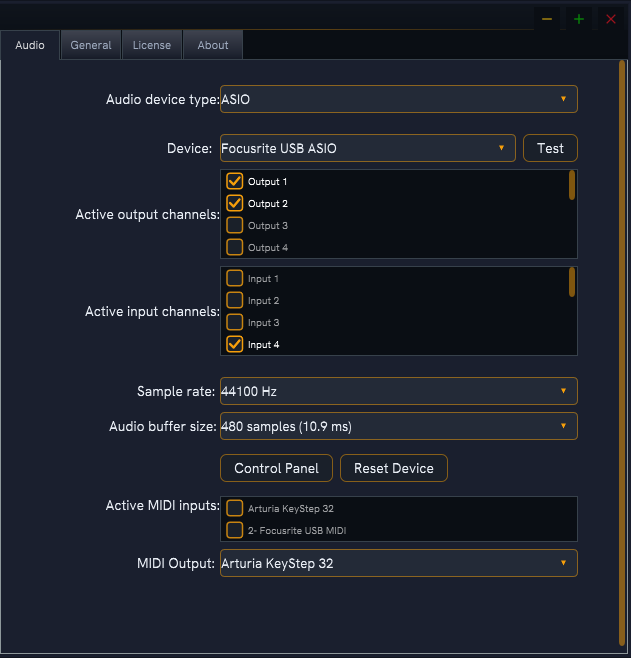
Pick your audio interface for input/output and select your MIDI Output device so the app can drive your instrument. Close the dialog when you're done.
3. Confirm the input is live
Back on the main window, look at the Input label in the parameters panel on the left. It reflects the input on your selected device:
| It says | Meaning |
|---|---|
| Input: Mono | One input channel active |
| Input: Stereo | Two input channels active |
| Input: N channels | More than two channels active |
| Input: Not configured | A device is selected but no input channels are active |
| Input: No device | No audio device selected yet |
If it shows No device or Not configured, click the label to jump back to the audio settings. You want at least Mono or Stereo before sampling.
Hear it before you record
Tick Monitor Input in the parameters panel to pass your instrument's sound straight through to your speakers/headphones, so you can play it and confirm the signal is arriving. More in Monitoring Input.
Next: configure the instrument
Devices connected and input confirmed? Next we'll set the note range and a few basics → Configure the Basics.