Exporting Your Instrument
Exporting turns your recorded samples into a playable instrument for your sampler. Sampling Assistant writes three formats — SFZ, Kontakt (KSP), and Decent Sampler — and you can produce any combination in a single export.
Start an export
Click Export in the parameters panel. The button is disabled until the instrument has samples, so record (or load) first.
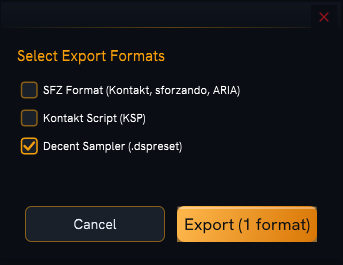
The Export Instrument dialog lists the formats as checkboxes:
| Checkbox | Output file | For |
|---|---|---|
| SFZ Format (Kontakt, sforzando, ARIA) | .sfz |
sforzando, ARIA, and other SFZ players |
| Kontakt Script (KSP) | .ksp |
Native Instruments Kontakt |
| Decent Sampler (.dspreset) | .dspreset |
Decent Sampler |
Tick one or more. The button updates to show how many you've selected — for example
Export (2 formats) — and stays disabled until at least one is chosen. Each output file is
named after your instrument (for example MyInstrument.sfz).
What export writes
When you export, Sampling Assistant:
- Copies your samples into a
Samples/subfolder next to the instrument file(s), so the export is self-contained. - Applies your edits — each trim and reverse is baked into the copied sample, leaving your originals untouched.
- Checks disk space first — if there isn't room for the copies, it tells you before starting rather than failing partway.
Path behavior differs by format
How each format refers to its samples matters if you move the folder afterwards:
| Format | Sample paths |
|---|---|
| SFZ | Relative — keep the .sfz and its Samples/ folder together and you can move them anywhere. |
| Decent Sampler | Relative — same: move the .dspreset and Samples/ folder together. |
| Kontakt (KSP) | Absolute — paths point to the exact location on disk. If you move the files afterwards, Kontakt won't find the samples until you re-point or re-export. |
Moving a Kontakt export
Because KSP uses absolute paths, decide where the instrument will live before you export, or be ready to re-export after moving it. SFZ and Decent Sampler don't have this constraint.
Export many at once
Selecting all three checkboxes writes SFZ, KSP, and Decent Sampler versions in one pass,
sharing the same copied Samples/ folder — handy when you want to cover multiple samplers
from a single instrument.
Related
- Editing Samples — your trims are applied to exported copies.
- Saving & Loading Instruments — keep a re-editable session too.