Settings Dialog
Open Settings from the top of the parameters panel. The dialog has three tabs: Audio, General, and About.
Audio tab
Choose and configure your audio hardware. This is the standard device selector, so the exact controls depend on your driver (ASIO is recommended on Windows). See Audio & MIDI Setup for the full walkthrough.
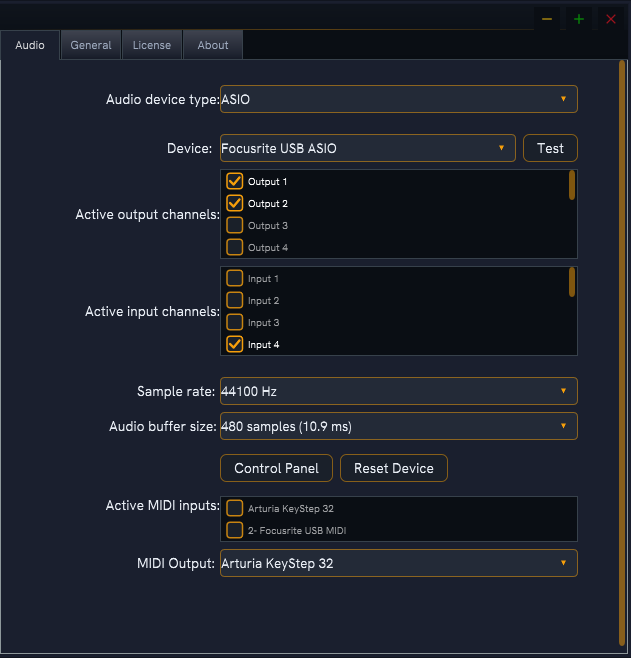
Typical controls:
- Output device and Input device selectors.
- Sample rate and Audio buffer size.
- Active input / output channels (Sampling Assistant records from 1–2 input channels).
- A control panel button for ASIO drivers, which opens your interface's own settings.
General tab
Three sections of on/off toggles.
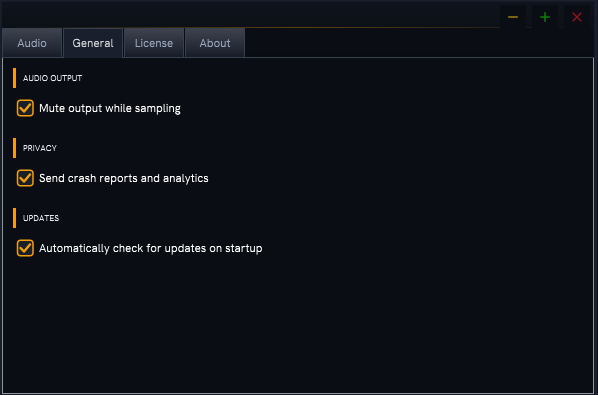
Audio output
| Toggle | Default | Tooltip |
|---|---|---|
| Mute output while sampling | Off | "When enabled, output is muted during sampling (silent). When disabled, you hear the input audio while sampling (default)." |
Privacy
| Toggle | Tooltip |
|---|---|
| Send crash reports and analytics | "Help improve Sampling Assistant by sending anonymous crash reports and usage statistics. No personal information or audio data is collected." |
Updates
| Toggle | Default | Tooltip |
|---|---|---|
| Automatically check for updates on startup | On | "When enabled, Sampling Assistant checks for a newer version on startup and shows a banner if one is available." |
About tab
Version and credits.
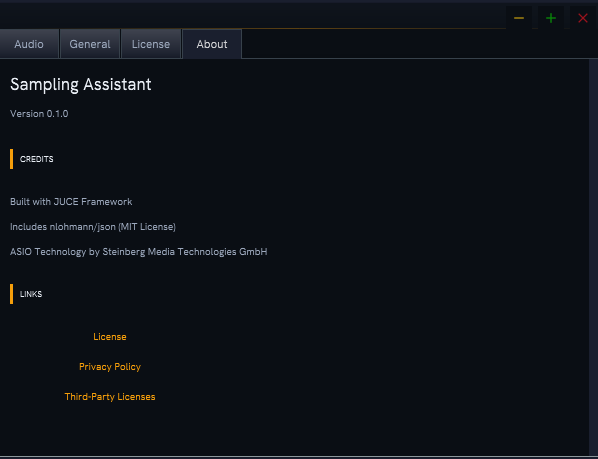
- Version — shown as
Version <number>(for example Version 0.1.0). - Credits:
- Built with JUCE Framework
- Includes nlohmann/json (MIT License)
- ASIO Technology by Steinberg Media Technologies GmbH
- Links: License · Privacy Policy · Third-Party Licenses.