Export It
Your samples are recorded — now package them into an instrument your sampler can load. For the quickstart we'll export to Decent Sampler, a free, cross-platform sampler that's perfect for trying out your new instrument.
Export to Decent Sampler
- Click Export in the parameters panel.
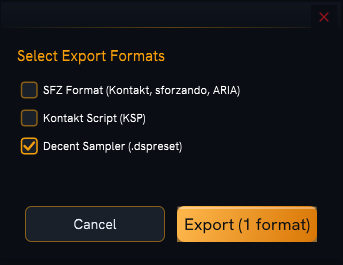
- In the format dialog, tick Decent Sampler (.dspreset).
- Click Export, then choose the folder where the instrument should be saved.
More than one format at once
The same dialog also offers SFZ (Kontakt, sforzando, ARIA) and Kontakt Script (KSP). You can tick several and export them together. Format-by-format details are in Exporting Your Instrument.
What you get
In the folder you chose, the app creates:
Your Instrument Name.dspreset      ← the Decent Sampler preset
Samples/                           ← a copy of every recorded .wav
    └── ...
- The
.dspresetfile is the instrument — it maps each sample to the right note. - The
Samples/folder holds copies of your recordings, so the export is self-contained. - The preset uses relative paths, so you can move or zip the whole folder and it still works on another machine.
Enough disk space
Before copying, the app checks there's room for all the samples (plus a small margin). If the drive is too full, it'll tell you instead of leaving a half-finished export.
Play it
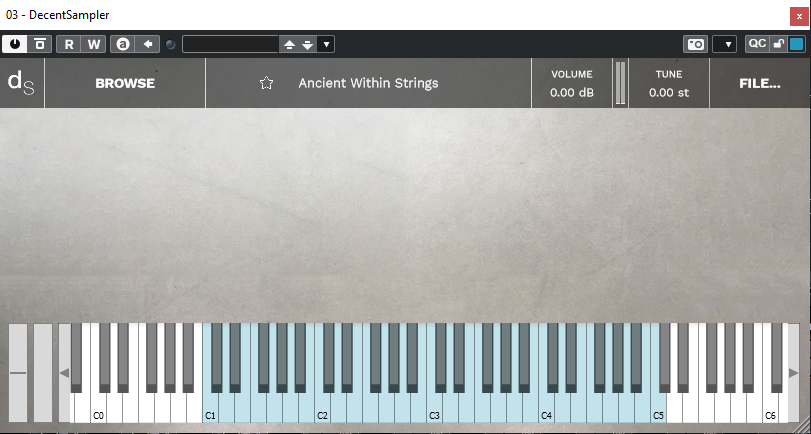
Open Decent Sampler and load (or drag in) your .dspreset file. Play your MIDI
keyboard — you're now playing the instrument you just sampled. 🎉
That's the whole loop
You've gone from install to a playable instrument. From here:
- Make it more expressive with velocity layers and round robins.
- Capture stereo sources properly with Recording in Stereo.
- Save your setup to reopen later — Saving & Loading Instruments.
- Browse all the Guides when you want to go deeper.