Audio & MIDI Setup
Sampling Assistant needs two connections to your instrument: MIDI out (so it can play notes) and audio in (so it can record the result). This guide covers choosing the right devices and getting both directions working.
Open the audio settings
There are two ways in:
- Click Settings, then open the Audio tab.
- Click the Input label in the parameters panel — it's a shortcut straight to the same Audio settings.
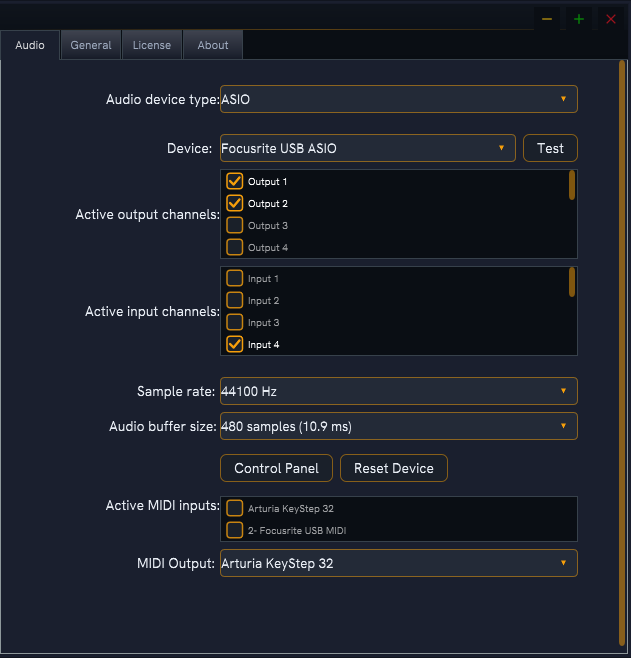
Choose your devices
The Audio tab uses the standard audio device picker. From here you set:
- Audio device type / driver — pick ASIO if your interface provides it. ASIO gives the lowest latency and the most reliable channel routing on Windows.
- Output device — where preview playback and monitoring are heard.
- Input device — the interface your instrument is plugged into.
- Active input/output channels — tick the channels your instrument actually uses.
- MIDI inputs/outputs — enable the MIDI port that carries notes to your instrument.
Prefer ASIO when you can
If your interface ships an ASIO driver, select it. Non-ASIO drivers work, but ASIO is more dependable for multi-channel input and low-latency monitoring. If ASIO doesn't appear in the list, see Troubleshooting.
Sample rate & buffer size
Sample rate and buffer size are offered by the device picker when your selected driver exposes them. Recordings are saved at the device's current sample rate.
Mono vs. stereo input
The number of active input channels you enable decides whether you record in mono or stereo. The parameters panel reflects this in the Input label:
| Label | Meaning |
|---|---|
| Input: Mono | One input channel active |
| Input: Stereo | Two input channels active |
| Input: N channels | More than two channels active |
| Input: Not configured | A device is selected but no input channels are active |
| Input: No device | No audio input device selected |
- Mono suits most mono synths and saves disk space.
- Stereo captures width from instruments with stereo outputs, stereo effects, or built-in spatial processing.
Recording channels independently
If your source is stereo but you want each side captured in its own clean pass, see Recording in Stereo.
Route MIDI to your instrument
Enable the MIDI output port your instrument listens on, then set the matching MIDI Channel in the parameters panel (default 1). If notes don't reach the instrument, double-check the channel and port — details in Troubleshooting.
Want to hear it first?
Turn on Monitor Input to pass your instrument's audio through while you set levels. See Monitoring Input.