The NoteCard Grid
The grid on the right of the main window is your live view of the instrument. Each note card represents one note in your range and shows its sampling progress, lets you audition takes, and is the way in to editing.
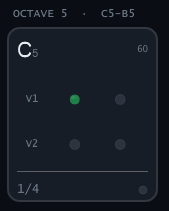
Reading a card
Each card shows:
- Note name and octave at the top (e.g. C5), with the MIDI number alongside. Octave naming follows the app's convention — see Note Range & Note Names.
- Velocity rows labelled V1, V2, … one per velocity layer, each with a row of dots — one dot per round robin.
- An X / Y count showing how many of the card's samples are captured (for example, a note with 2 velocities × 3 round robins reads up to 6 / 6 when complete).
- A state LED indicating the card's overall status.
Behind the cards, octave separators label each octave band (for example, OCTAVE 5 · E5–B5), and a keyboard strip along the top reflects each note's overall state at a glance.
Card states
As a run proceeds, each card moves through three states:
| State | Looks like | Meaning |
|---|---|---|
| Pending | Gray | Not recorded yet |
| In-progress | Pulsing cyan | Recording right now |
| Completed | Emerald | Captured |
During recording, a progress bar above the grid tracks the whole run, and a status line reports the current target — for example "Recording C5 · Velocity 1/2 · Round-robin 2/3."
Interacting with cards
- Left-click a completed card to audition its sample through your output.
- Right-click a card to open its edit window — trim, reverse, and fine-tune the take. See Editing Samples.
Audition as you go
You don't have to wait for the whole run to finish — click cards as they turn emerald to spot-check the results, and re-visit any that don't sound right.
Related
- Editing Samples — clean up individual takes.
- Silent, clipped, or wrong-length samples? See Troubleshooting.