Install & First Launch
1. Download
Grab the latest installer from the
releases page — download
SamplingAssistantSetup.exe.
Windows only (for now)
Sampling Assistant currently runs on Windows. A macOS version is planned.
2. Install
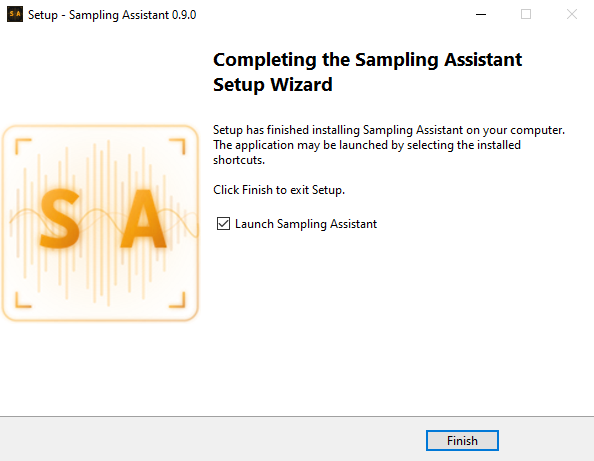
Run SamplingAssistantSetup.exe and follow the installer. When it finishes, launch
Sampling Assistant from the Start menu or desktop shortcut.
3. First launch
The first time you open the app, two quick one-time steps appear before the main window:
-
Activate your license. An Activate Sampling Assistant window asks for the license key from your purchase email. Paste it in and click Activate. See Licensing & Activation for the full walkthrough — including where to buy a key and what to do if activation fails. After the app is activated, you won't see this again on this machine.
-
Privacy notice. A short notice explains that the app can send anonymous crash reports and usage analytics to help improve it. It's on by default and you can opt out — confirm to continue. You can change this any time later under Settings → General → Privacy.
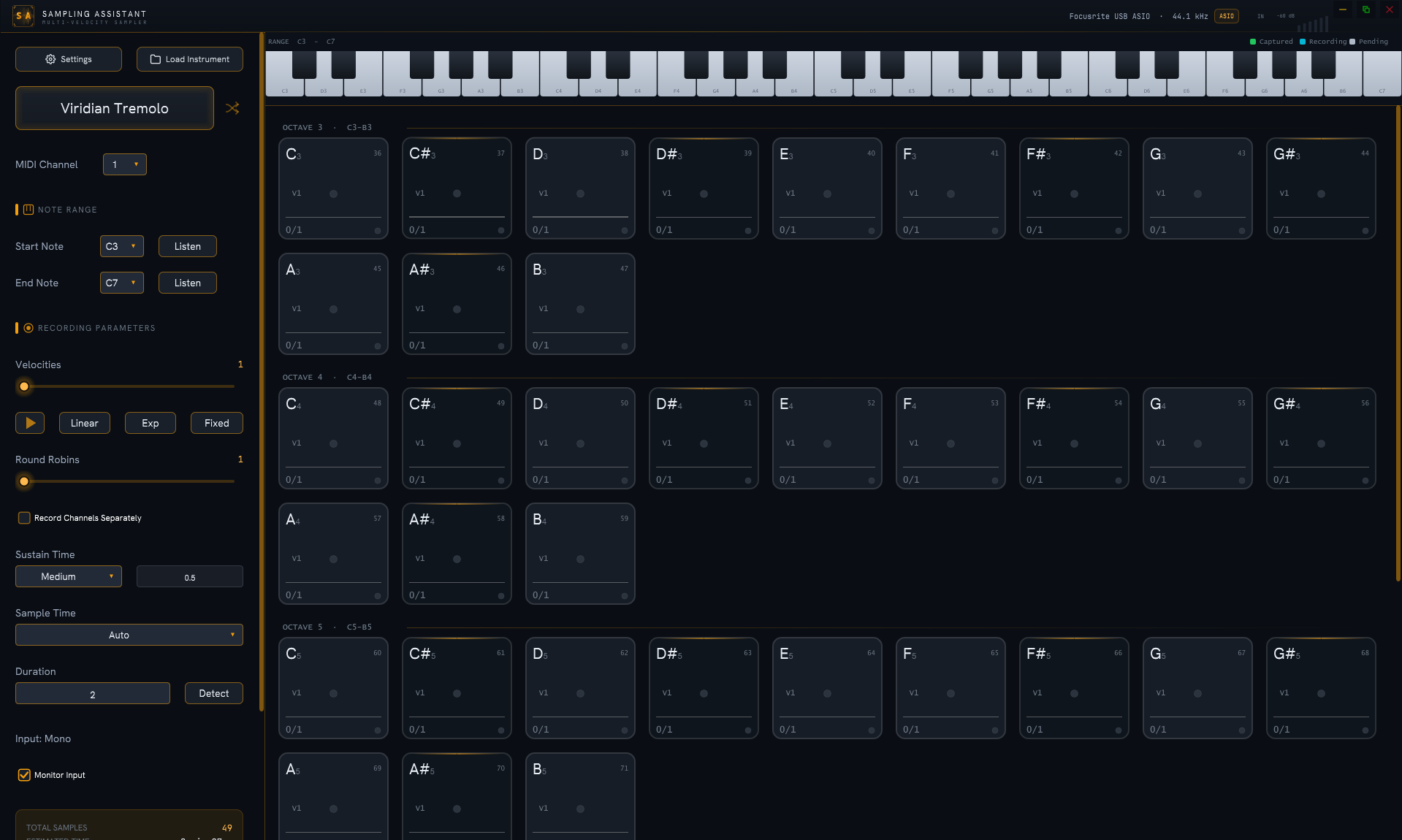
That's it — the main window opens, titled Sampling Assistant.
Next: connect your gear
The app is installed, but it doesn't know about your synth yet. Next we'll route MIDI and audio so Sampling Assistant can play your instrument and record it → Connect Your Gear.