Sample Duration & Sustain
Two controls decide the length of every recording: Sustain Time (how long the note is held down) and Sample Time (how long the app records for). Together they set how much of the note — and its tail — you capture.
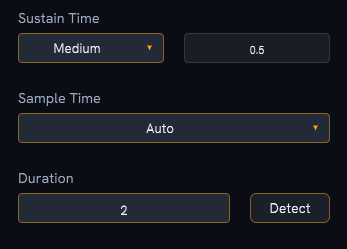
Sustain Time — how long the note is held
Sustain Time is how long Sampling Assistant holds each MIDI note down before releasing it. Choose from the dropdown:
| Option | Hold time |
|---|---|
| Short | 0.1 s |
| Medium | 0.5 s (default) |
| Long | 2.0 s |
| Manual | Your own value (0.01 – 10 s) |
Pick Manual to type an exact hold time in the field beside the dropdown. For sustained sounds you'll generally want a longer hold so the instrument reaches its steady tone before release.
Sample Time — how long the app records
Sample Time decides how the recording length is set. It has two modes:
- Manual — you type a fixed Duration (in the field below) for every note. Range 0.1 – 30 s, default 2.0 s.
- Auto — Sampling Assistant measures a suitable duration for you when you run detection.
Manual mode
The simplest, most predictable option: enter a Duration and every note records for exactly that long. Make it long enough to capture the note plus any tail or release you want.
Auto mode
In Auto mode the Duration field starts read-only and shows "Please start detection." Click Detect — the button reads Detecting… while it works, then becomes Re-detect — and the measured duration fills in. Re-run detection any time your sound or settings change.
Which mode should I use?
Manual is great for your first runs and for consistent results — a fixed 2 s captures most notes plus a short tail. Auto is handy once you're comfortable and want the length matched to the actual sound.
How recording length affects file size
Longer durations mean larger files. The ESTIMATED SIZE in the summary box updates with your duration, sustain, and total sample count, so you can see the cost before you record.