Licensing & Activation
Sampling Assistant is a paid app. One license key activates the app on your machine. This page covers buying a key, activating, moving to a new computer, and what the app does in the background to keep your license valid.
Buy a license
Purchase Sampling Assistant from the official store: samplingassistant.gumroad.com. After checkout, your license key arrives in your purchase email. (You can also reach the store from the Buy a license link inside the activation window.)
Activate
The first time you launch the app — or any time it isn't yet licensed on this machine — the Activate Sampling Assistant window appears:
- Copy the license key from your purchase email.
- Paste it into the key field (it looks like
XXXXXXXX-XXXXXXXX-XXXXXXXX-XXXXXXXX). - Click Activate.
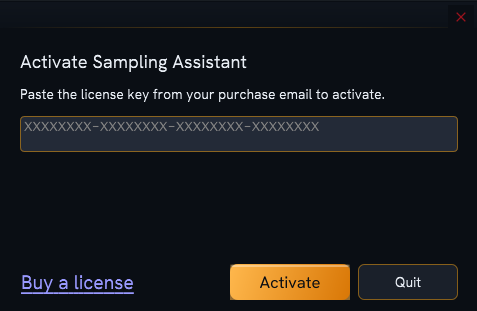
Once activated, the main window opens and you won't be asked again on this machine. If you'd rather not activate right now, click Quit to close the app.
If activation fails
The window shows a message explaining what happened:
| Message | What it means / what to do |
|---|---|
| That license key wasn't recognized. | Check for typos and try again — keys are easiest to get right by copy-paste. |
| This key has been activated on too many machines. | You've hit the activation limit. On a computer where the license is still active, open Settings → License and click Deactivate this computer to free a slot, then activate here. No spare machine? Email support@samplingassistant.com. |
| This purchase was refunded… | The key is no longer active because the order was refunded. |
| This license has been disabled. | Contact support if you didn't expect this. |
| Couldn't reach the license server. | A network problem — check your internet connection and try again. |
For anything unexpected, contact support@samplingassistant.com.
Manage your license
Once activated, open Settings → License to manage your license on this machine:
- License key, Activations used, and Last verified date are shown at a glance (the key is masked for privacy).
- Re-verify now — re-checks your key with the license server immediately, instead of waiting for the next background check.
- Deactivate this computer — frees this machine's activation slot so you can use the key elsewhere (see below).
- Manage purchase — opens the store to view your order.
Moving to a new computer
Each key allows a limited number of active machines. To move your license yourself — no email required:
- On the computer you're leaving, open Settings → License and click Deactivate this computer, then confirm.
- The app frees your activation slot and clears the license locally. Restart to re-activate here if you ever want to.
- On the new computer, activate as usual — the freed slot is now available.
Deactivation needs the internet
Freeing the slot happens on our server, so you must be online. If the app can't reach the license server, nothing changes and your license stays active on this machine — try again later.
Still stuck (e.g. the old machine is gone)? Email support@samplingassistant.com and we'll free the slot for you.
Staying activated (and offline use)
After activation, Sampling Assistant keeps your license valid quietly in the background:
- It re-checks your license occasionally (roughly every couple of weeks) when you're online. You won't notice this.
- You can keep working offline for an extended period — up to about two months — before the app needs to reach the license server again to confirm your license is still valid.
In normal use you'll never think about any of this; just keep the machine online now and then. If you ever want to force a check yourself, use Re-verify now in Settings → License.
Back to the quickstart
Activated? Head to Install & First Launch to finish first launch, or jump straight to Connect Your Gear.